This guide is for anyone planning to buy Shadowrocket or verify the app already installed on their device. First, confirm the App Store listing by checking the developer name, official icon and app ID. Then review device compatibility and purchase status, and distinguish buying the app from setting up a connection. Verify the listing on the App Store product page—not by relying on search position or the app name alone.
1. Three checks to verify the genuine app
Shadowrocket is a paid, closed-source app for Apple platforms, available exclusively on the App Store. It is primarily used on iPhone and iPad. Compatibility with Mac, Apple TV and Apple Vision, as well as system requirements, is listed on the App Store product page. To verify the app, first make sure you are viewing its product page—not a sponsored search result or a listing with a similar name.
Each detail serves a different purpose: the name identifies the product, the icon provides a quick visual check, and the app ID confirms which listing a link points to. Search rankings change, and the interface language and displayed price may vary, so none of these should replace a proper identity check. Verify the developer’s full name, not just its first part or a single word.
Rule of thumb: verify all three before buying
If the developer, icon or app ID does not match, stop before buying. Return to the download guide on this site and reopen the product page. A similar name or price is not a substitute for missing verification details.
2. From the App Store listing to purchase confirmation
We recommend using the iPhone or iPad you plan to use. Start with the download guide, then open the product page using its App Store button. This avoids repeatedly sorting through search results, but you should still complete the checks below.
-
Open the product page
Open the App Store from the download guide and confirm the product name is Shadowrocket. Review the full product page; don’t buy directly from the search results.
-
Check the developer
Check the developer shown on the product page and look for the provider information in the details. Confirm the full name: Shadow Launch Technology Limited. Its location may vary with the App Store layout.
-
Compare the official icon
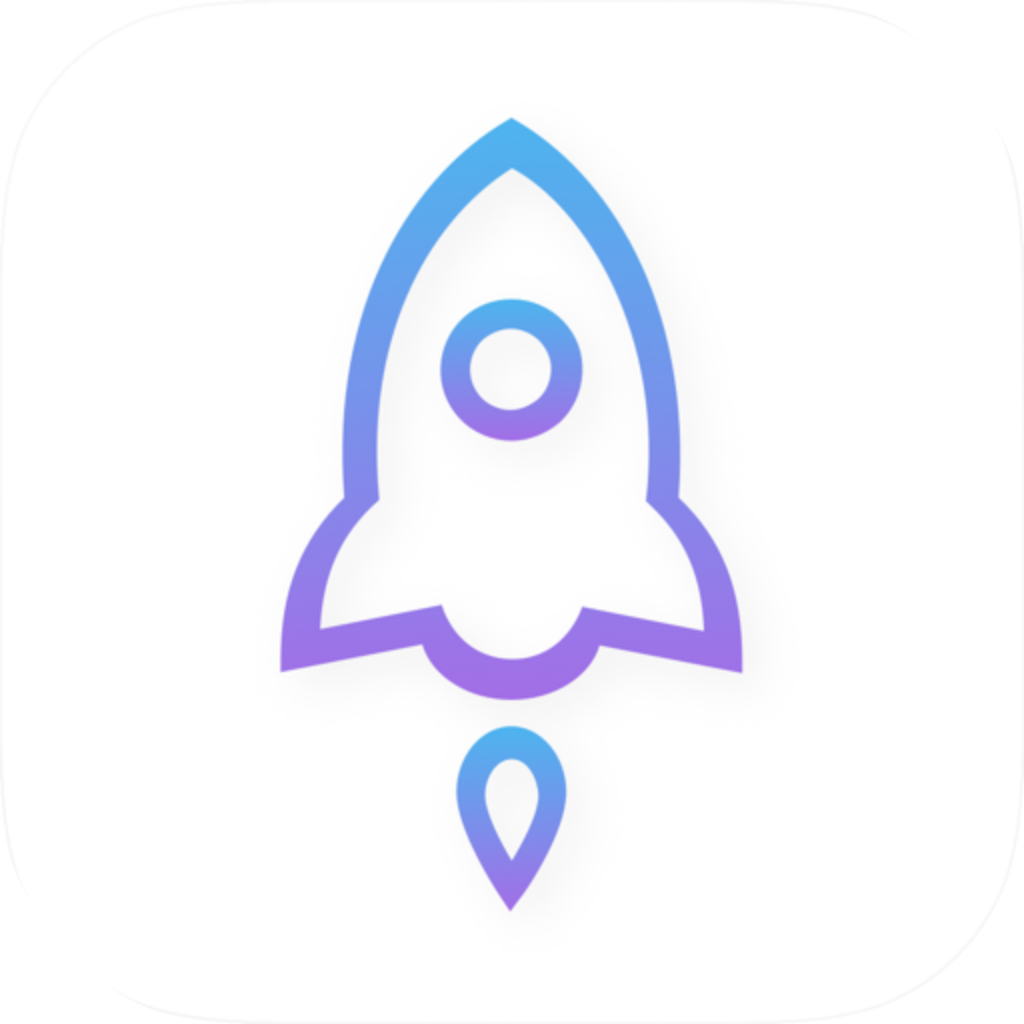
Compare the App Store icon with the official icon shown below. Look for the overall design: a rocket with a blue-violet outline on a white background. A rocket graphic alone is not enough to confirm it’s the same app.
-
Check the app ID
Use the product page’s share feature to copy the link and check its path for
id932747118. The app ID is this number—not a search term or the developer name. -
Buy only after verification
Review compatibility, the current price and the purchase confirmation details. Authorize the purchase only if the app meets your device’s requirements. Check the App Store page for the current price, system requirements and purchase availability.
If the copied link includes query parameters, focus on id932747118 in the product path. The regional path and display language do not determine the app’s identity. Nor does seeing these digits somewhere on a page prove that it’s the right listing. Confirm that the link opens Shadowrocket’s App Store product page.
3. Compare the official icon and developer details
The official icon shown below can help you identify the app before buying. It is the brand icon, not an app screenshot. Verify it alongside the developer information and app ID; don’t rely on visual resemblance alone.
| What to check | Details to verify | Common missteps |
|---|---|---|
| Product name | Shadowrocket | Relying on the nickname “Shadowrocket” without checking the product’s English name. |
| Developer information | Shadow Launch Technology Limited | Mistaking a name mentioned in the app description for the developer shown on the App Store. |
| Official icon | A rocket with a blue-violet outline on white; compare it with the image above. | Assuming an icon is the same because its colors are similar or it includes a rocket. |
| App ID | 932747118 | Checking only the product name in the link and missing the numeric app ID. |
The developer name may wrap on narrow screens. If it is truncated, expand the relevant details or check the full name in the product page’s information section. The app description, user reviews and search snippets are not the developer field and cannot replace this check.
The app ID identifies the App Store listing; it does not indicate an update version or the current price. You don’t need to look for a particular version number to buy the app. Confirm the correct product, then check the device requirements and purchase details currently shown in the store.
4. Understand the difference between the app and connection services
Buying the app ≠ buying a connection plan. Purchasing Shadowrocket gives you the right to use the app. It does not create a connection address, authentication password or subscription for you. This site does not provide, sell or recommend nodes or subscriptions. Any further setup assumes you already have a service provider and subscription of your own.
- App purchase: Completed through the App Store; this covers acquiring the app and recording the purchase.
- Connection details: Supplied by a service you already use. Check the address, port and authentication details against the relevant protocol.
- Subscribe: Used to import and update your existing subscription; it is separate from buying the app on the App Store.
- Config: Used to manage configuration files. Changing rules or policies does not affect your App Store purchase status.
If Home shows no connection configuration after installation, that doesn’t mean you bought the wrong app. First verify the app on the App Store, then check whether you’ve imported your own configuration. Likewise, opening the app doesn’t mean you have a working connection. App identity, configuration validity and network connectivity are three separate things.
5. Troubleshooting purchases, new devices and search results
Before or after purchase, the App Store button may show a price, a redownload option or “Open.” These states reflect the app’s availability on your current device and account; they do not replace checking the developer and app ID. Verify the listing first, then decide whether to buy or redownload.
Several similar listings appear in search. Which one should I open?
Leave the search results and open the product page from this site’s download guide. Check Shadow Launch Technology Limited, the official icon and id932747118. Don’t choose based on search ranking or a similar-looking icon.
I bought it before. Why am I seeing a price again?
First, check that the Apple Account currently used for Media & Purchases on the App Store is the one you used to buy the app. Then look for Shadowrocket in your account’s purchase history. Don’t pay again until you’ve checked the record. If you still have questions, contact support through the App Store’s purchase support options.
Can I use my purchase on a new iPad?
Open the same app listing in the App Store on the new device and check its purchase status and compatibility, then follow the store’s instructions. Refer to the App Store page for device compatibility, system requirements and purchase availability. You’ll also need to check and transfer any configuration from your old device separately.
What if the App Store says the app isn’t available?
Note the exact message shown in the store and check device compatibility, your account’s region and purchase settings. If the App Store says the app isn’t available in your current region, follow the store’s current status. Don’t buy a different app with a similar name instead.
If the app is already installed, find it in your App Store purchases and open its product page, then verify the three details in this guide. Purchase history confirms the app transaction; a configuration backup preserves your connections and rules. They are not interchangeable. After redownloading the app on a new device, check that your own configuration has been restored.
6. Why the app ID needs to be checked with the other details
The name and icon make the app easy to recognize, while the app ID helps confirm the App Store listing. The product name shown in a copied link cannot establish the link’s identity on its own. Checking the numeric ID helps avoid relying on the title alone, but the check should not stop at the number: confirm that the link opens the right product page and verify its developer information too.
- First, confirm that the App Store page is for Shadowrocket.
- Next, verify the full developer name and official icon.
- Check the product path in the shared link for
id932747118. - Finally, check the price, compatibility and purchase status for your current account before proceeding.
This order separates identity checks from purchase checks. The first three confirm that you have the right app; the last confirms whether your device and account can get it. After purchasing, check your existing connections in Home, your configuration in Config and any troubleshooting steps separately. This helps prevent configuration issues from being mistaken for an app identity problem.