Official Manual · Quick Start
Shadowrocket Setup and Connection
Follow this order: import → choose a mode → connect → test → troubleshoot. Get one connection working before changing rules, and avoid changing multiple settings at once.
STEP 01 / IMPORT
Add Server: Add a Server or Import a Subscription
First, identify what information you have. Individual server details and a Subscribe URL are two different inputs; don't enter one in place of the other.
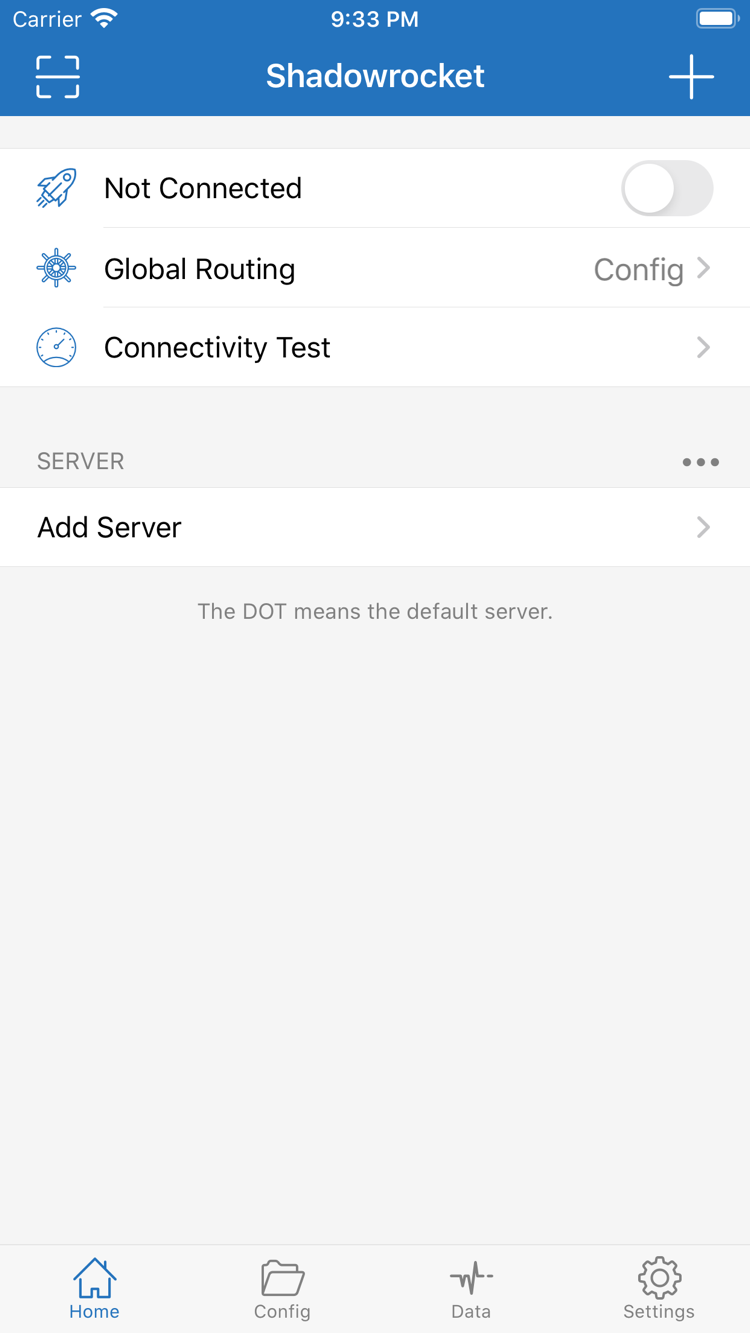
Open Shadowrocket, go to Home, and find the SERVER section and Add Server. If you haven't added an entry yet, an empty list is expected and doesn't indicate an installation problem—it just means no connection details have been saved. Choose one method based on the information you have: add a server manually if you have separate fields such as protocol, address, and port; use Subscribe if you have a complete subscription link. For your first setup, choose one method; there's no need to enter the same information twice.
Have Server Details? Fill In the Fields for Its Type
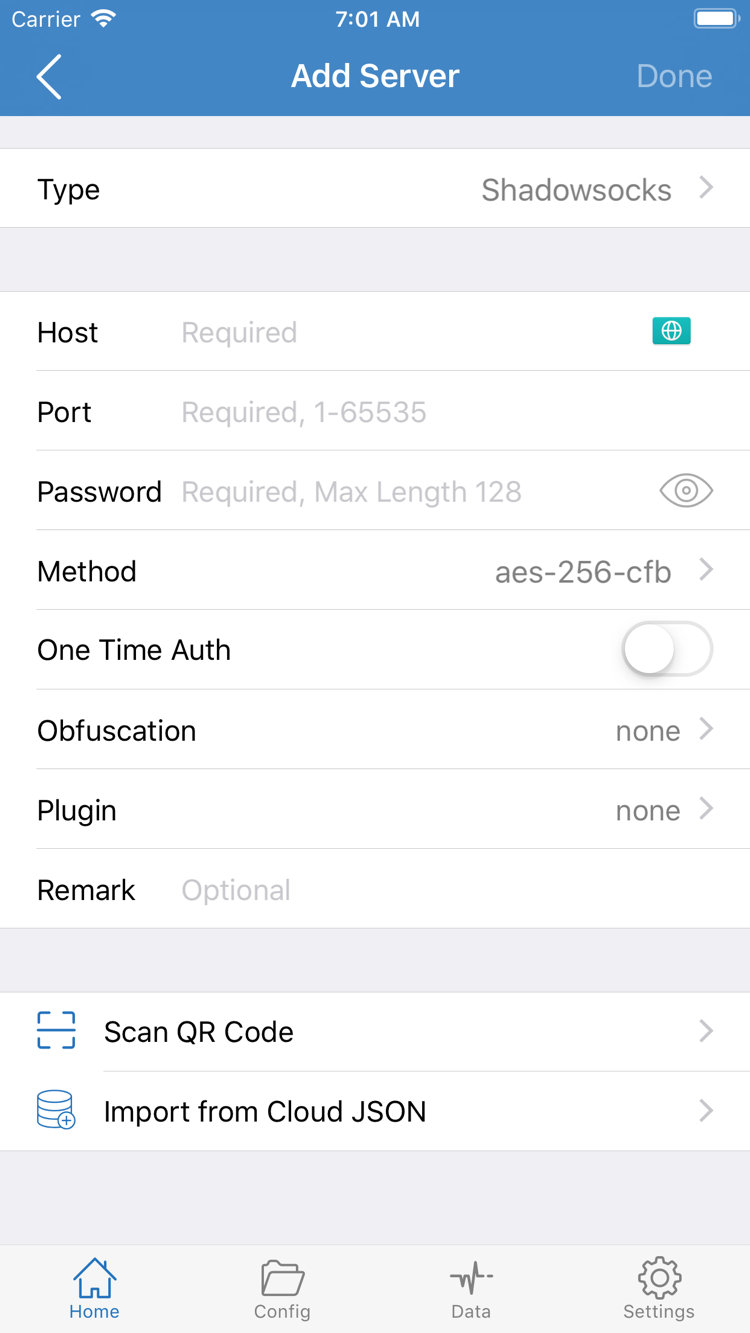
After tapping Add Server, choose Type first, then fill in the required fields. The screenshot shows a form with Host, Port, Password, and Method. Enter the server domain name or IP address in Host, the corresponding port in Port, and check Password and Method against your original details. Fields may change when you choose a different Type. Don't use one protocol's fields for another, or guess based on option names.
When copying details, check for leading or trailing spaces, line breaks, and punctuation. Make sure the port matches the server information. The address field usually takes only a host name, not a full web page path. Some protocols also require a UUID, SNI, or transport settings; get these from your existing server details. If anything is missing, check with the provider of those details before continuing. For more on the fields, see the protocol reference.
Have a Subscription Link? Import It with Subscribe
In Add Server, choose the Subscribe type, enter a name you can recognize, and paste the complete subscription URL into the URL field. Keep the URL's query string when copying it; don't use only the domain, and don't enter the subscription URL as a Host. Save and wait for the subscription content to load, then return to Home and check for the corresponding group or server entries. Saving a subscription and successfully retrieving its entries are separate steps—check what actually appears in the list.
If your details are in a QR code, use Scan QR Code and allow camera access if prompted. After scanning, check the detected type and fields before saving. Import from Cloud JSON is a separate import option, not the same as Subscribe; don't enter a regular subscription link there. Use the method that matches your information format—being able to paste something doesn't mean it's in the right format.
A subscription URL may contain access credentials, so protect it like a password. When troubleshooting, don't post the full URL on a public page or include it in a screenshot. After importing, select the specific server you intend to use, then move on to Global Routing. Don't change advanced options or test every entry in bulk yet.
STEP 02 / ROUTING
Global Routing: Choose a Mode and Check Config
The server determines where you connect; Global Routing determines how requests are handled. Check both separately.
Return to Home, tap Global Routing, and check the current mode. This guide refers to the three options as Config, Proxy, and Direct, matching the labels in the app. Don't assume that turning on the connection switch means every request goes through the selected server: the mode and rules also affect how requests are handled.
| Mode | What it does and what to do here |
|---|---|
| Config | Uses the rules in the active configuration file to determine how traffic is handled. Before using it, check which file is active in Config. |
| Proxy | Sends regular requests through the selected proxy. Use it to compare modes temporarily; it doesn't guarantee that every destination will be accessible. |
| Direct | Connects directly to the destination. Even with the connection switch on, requests may not be using the selected server. |
For everyday rule-based routing, choose Config, then open the Config page and check the active configuration file. Importing a subscription adds server entries; it doesn't select or configure a set of rules for you. If you have a separate configuration file, confirm its source and purpose before importing it through the app and selecting it. If you don't have a file, review the existing configuration first and avoid overwriting it without a reason.
Check Rule in Config
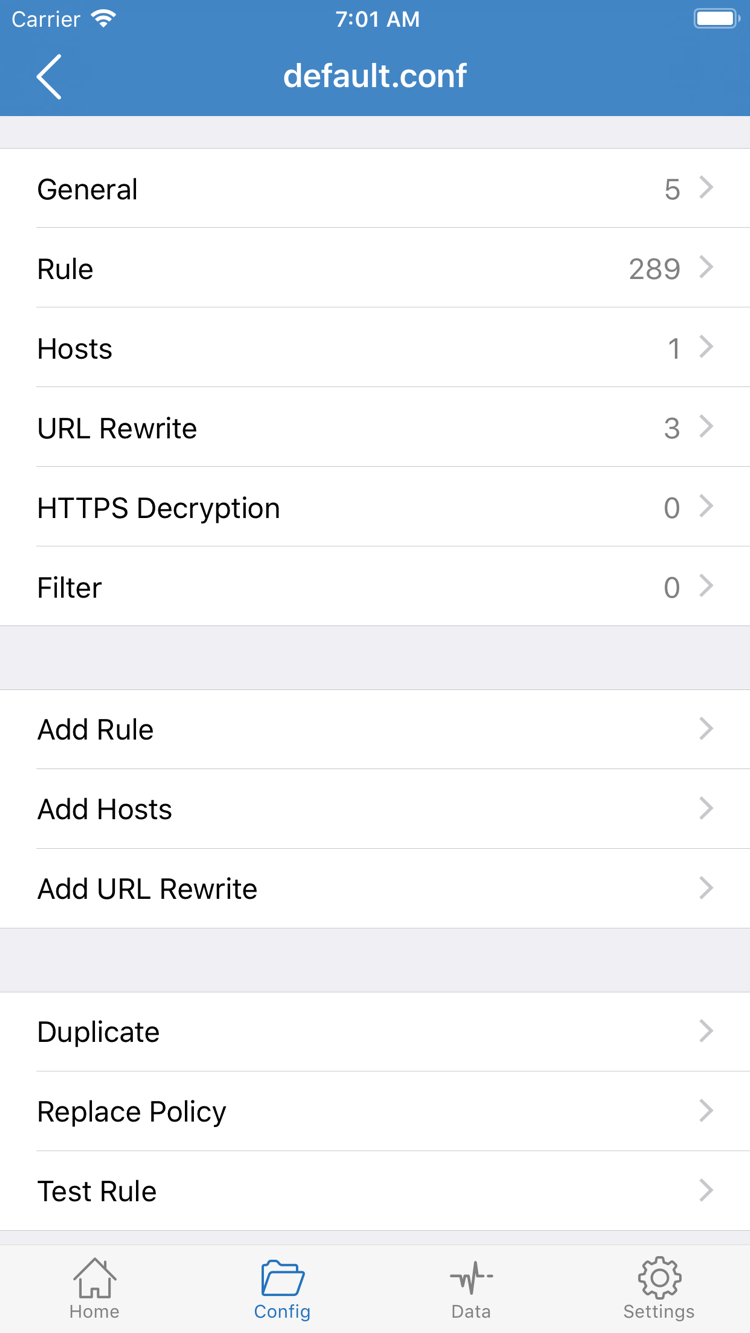
The official screenshot shows a configuration editor with sections such as General, Rule, Hosts, URL Rewrite, and HTTPS Decryption, as well as Add Rule. For initial setup, focus on Rule and check whether the rules fit what you want to do. Other sections, such as General, serve different purposes; you don't need to change each one to get connected for the first time or turn on every advanced feature.
Rules are evaluated from top to bottom, and processing stops at the first match. PROXY sends a request to the corresponding proxy policy, DIRECT connects directly, and REJECT denies the request. FINAL is the fallback when no earlier rule matches. Put specific exceptions before broader rules. For an initial connection test, keep the existing configuration and note its original settings; there's no need to add a large number of custom rules yet.
To distinguish a server issue from a rules issue, you can temporarily choose Proxy and test the same destination, then restore your intended mode. This is a comparison method, not a long-term configuration recommendation. Don't change the server, rules, and network during the same test, or you won't know which change caused the result. For more on rule order, see Rule Order and the FINAL Fallback.
STEP 03 / CONNECT
Home: Select a Server and Turn On the Connection
Select a server first, confirm the mode, then start the connection. The first connection may require system authorization to add a VPN configuration.
After completing the first two steps, return to Home and select the server you plan to use under SERVER. Check that the selected entry is the one you expect. If a subscription contains several entries, don't mistake the group name for the server in use; confirm the specific selected item. If no entries are available, return to the first step and check the import result instead of repeatedly toggling the connection switch.
Check Global Routing again. Once you've confirmed the server and mode, turn on the switch at the top of Home. Not Connected in the official screenshot means the app was disconnected when the screenshot was taken; it's not text you need to enter. Watch for a change in status as the connection starts. If the switch turns off immediately or an error appears, note the message. Avoid toggling rapidly so you can tell which stage failed.
Review System Authorization the First Time You Connect
The first time you connect, the system may prompt you to add a VPN configuration. This authorization lets the app establish the relevant network connection; it's separate from verifying your existing server account. Check that Shadowrocket is the app requesting access, then follow the system prompt. If the system requires device authentication, complete the device's usual verification process. The app generally can't establish a connection until you approve the request.
If you canceled the authorization prompt, return to Home and try connecting again, then check for the system prompt. If device management policies restrict this action, follow your organization's requirements; don't try to bypass them by changing unrelated settings. Also check whether another VPN connection is active on the device, so you don't mistake a connection switch for a server problem.
After approving the request, return to Home and wait for the connection status to stabilize before testing. A system indication that the connection is established only means the local connection process has reached that stage; it doesn't guarantee that remote authentication, access to destinations, and rule behavior are all correct. Keep the app settings unchanged for now and use the next step to check each part separately.
STEP 04 / VALIDATE
Connectivity Test: Check the Connection and Access to Destinations
After connecting, use Connectivity Test on Home and review the result for the selected server. Results depend on the test method and destination: a result doesn't mean every site is accessible, and no result doesn't necessarily mean all services are failing. Treat the test as a way to narrow down the issue, not as a definitive verdict. Don't delete or replace multiple entries based on a single test.
Check Three Things Separately
- Check the local connection status. Return to Home and confirm that the connection is still active, the selected server hasn't changed unexpectedly, and Global Routing is still set to the mode you confirmed. If the status isn't stable, troubleshoot the connection first.
- Check access to the actual destination. Open the browser and visit a page you need to use. Start with a simple page, wait for it to load fully, then test the app you actually need. Don't rely only on a cached page or whether a notification arrives.
- Check how requests are routed. If you need to verify routing, use Data or the connection records available in the current interface to find the request you just made and check its policy. Seeing traffic change doesn't prove that every request is going through PROXY.
If regular web pages load but one app doesn't work, keep the current working configuration and note the destination and action that failed. An app may use multiple domains, different transport methods, or its own sign-in state. A working home page doesn't prove that all of its dependencies are reachable. Likewise, one failed destination doesn't mean the whole subscription is invalid.
For a comparison, use the same destination, server, and network, and change just one condition. For example, keep the server the same, compare Config with Proxy, then restore the original setting. If the results differ, check the rules and name resolution first. If both modes fail, check the server details and reachability. This gives you more useful information than changing several switches at once.
STEP 05 / DIAGNOSTICS
Settings: Check Options Based on Where the Failure Occurs
First identify the step that failed, then choose what to check. Change one setting at a time and keep a note of its original value.
No Subscription Entries? Check the Input and Retrieval Conditions
If Subscribe is saved but the expected entries don't appear on Home, first check that the URL is complete and doesn't contain spaces, line breaks, or extra text. Then check whether your current network can retrieve the subscription content. A subscription URL opening in a browser doesn't necessarily mean its response is in a format the import method can use. A sign-in page or error message, for example, can't be parsed as a server list. Check the URL's status, validity period, and content with the provider of the service details you already have.
Server Added but Won't Connect? Check Details and Authorization
For a manually added server, open its edit page and compare Type, Host, Port, and authentication fields one by one. Check for a wrong protocol type, incorrect port, incomplete password, or TLS-related name that doesn't match the original details. Don't disable certificate verification just to get a connection. If you see a certificate warning, first check the device time, server name, and whether the configuration matches. If the switch won't stay on, check whether you've approved the system VPN configuration.
Test and Access Results Differ? Check Test Method
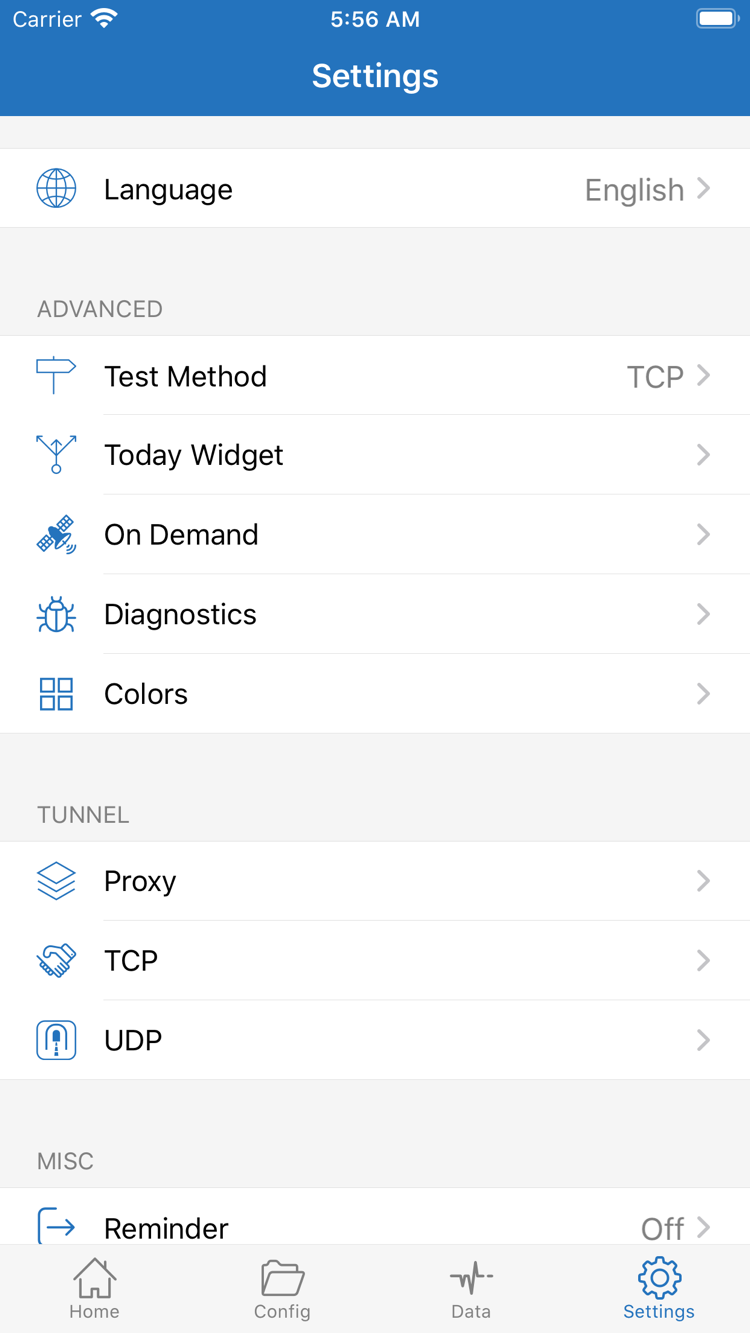
Open Settings and check Test Method to see how Connectivity Test currently determines its results. Test destinations, port reachability, and access to real web pages are different levels of testing; don't treat a test result as a speed guarantee. The official Settings screenshot also shows Diagnostics, Proxy, TCP, and UDP. These options serve different configuration or diagnostic purposes. For this issue, open only the option relevant to what you're seeing; don't try unfamiliar switches one by one.
Only Some Destinations Fail? Check Rules and DNS
If Proxy works but Config doesn't, first check the Rule match order, whether the destination matches REJECT, and whether a broader DIRECT rule matches it first. If you see a domain resolution error, check DNS separately; changing servers won't necessarily fix a resolution issue. For details on rules and protocols, see the technical reference. For now, restore the smallest set of settings that reproduces the issue and allows a clear comparison.
Settings Keep Changing? Check On Demand
On Demand in Settings controls connection triggers; it is separate from the routing policies in Global Routing. If the connection starts or changes state unexpectedly after a network change, check whether a relevant condition is enabled. Note the original setting before comparing. Until you have confirmed that manual connections work, avoid adding automatic triggers; otherwise, it can be hard to tell whether a change came from the server, rules, or trigger settings.
If you need Diagnostics, keep the error message, the order of events, and the steps to reproduce the issue. Before sharing diagnostic information, remove subscription URLs, passwords, authentication details, and personal access records. Keep only the error type and necessary context. Don't clear all your settings first; doing so may remove useful information for comparison.
If these checks don't identify the issue, go to Troubleshooting and continue based on the stage that failed: import, connection, or access to specific destinations. Before finishing, restore any temporary Global Routing or test settings and check the destination again. For future changes, follow the same process: note the original value, change one setting, and test again.